1. Prepare the games and your coding workspace
Use the official Melty desktop app on Windows and install the games you intend to use. You need legitimate copies and the accounts required by those games. A title in a store wishlist is not an installation.
Have a coding agent ready in a project workspace. Melty’s homepage names Claude Code and Codex as destinations for its instructions. The tutorial uses Claude’s desktop coding interface with a selected working directory: a coding workflow with local-file access, not simply an ordinary chat bot. A particular model mentioned in a video is not a platform requirement.
2. Select the pair in Create
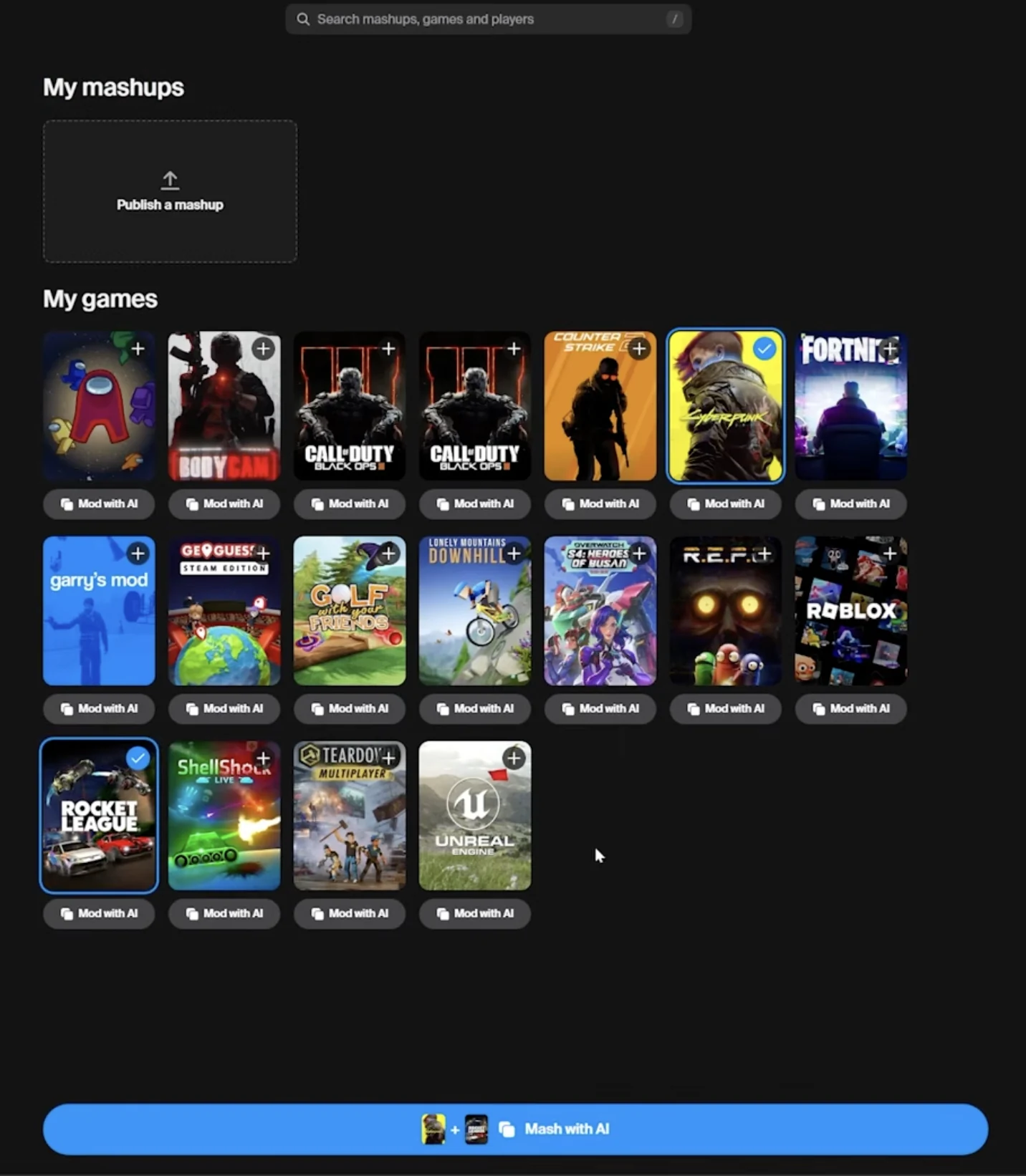
Open Create and look under My games. Select the two installed games you want to combine, then use Mash with AI at the bottom. The single-game Mod with AI controls are a different starting point from the selected-pair action.
The supplied screen has blue selection outlines and checkmarks on Cyberpunk 2077 and Rocket League. It illustrates selecting a pair, not proof that every pairing can be built. Check the game names in the generated instructions before continuing, especially if the small button thumbnails do not match the highlighted cards.
3. Copy Melty’s instructions into the agent
Use Send instructions to coding agent, then paste the copied instructions into your coding-agent session. In the tutorial’s 06:52 chapter, the presenter selects the pair, copies the prompt and pastes it into Claude. Melty’s homepage describes the same handoff: copy its instructions and say what you want.
Review the pasted text before submitting. The demonstrated prompt includes the game names, detected installation directories and a request to publish on Melty. If you only want a local experiment, explicitly remove the publishing request and tell the agent not to publish. Keep the platform setup instructions; add your gameplay brief rather than replacing everything with “merge these games.”

4. Describe one playable interaction
Specify which game supplies the world, what mechanic you want from the other game, and what counts as a successful first test. Answer the agent’s follow-up questions about controls, camera, character, interface and mechanics. A concrete first interaction is easier to evaluate than a request for every feature from both games.
Original example brief — not an official Melty-generated prompt: “Use the host game’s world and prototype one movement mechanic inspired by the second game. Start with a small local test area. Explain what is technically feasible before changing files. For the first test, I should be able to move, activate the mechanic and return to normal controls. Do not publish or distribute game assets. Stop and explain any blocker.”
Allow the agent to explain feasibility and its proposed changes. The tutorial’s new Cyberpunk/Rocket League prompt is pasted but not submitted at that moment. Its later build discussion uses an earlier conversation, so copying that demonstration is not an instant-success recipe.
5. Test locally, then decide whether to publish
Use the launch procedure produced for your project and check the interaction in your brief. If it fails, give the agent the action you took, expected behaviour and actual result. The tutorial’s debugging discussion uses concrete symptoms such as character clipping and weapons not hitting. Re-test the same action after a change.
A local result and a public release are different milestones. Publish a mashup is visible in My mashups, but Melty’s terms say a release goes live only after Melty has seen it running on the creator’s PC and it passes the audit. Uploading or asking the agent to publish is not immediate approval.
Before publishing, review the files, description and permissions to share them. Owning the games does not automatically give you redistribution rights. Melty’s terms make you responsible for releases made by your agent as well as those you submit yourself.
| Milestone | What it establishes | What it does not establish |
|---|---|---|
| Instructions copied | The agent has the platform setup text | A build has completed |
| Local test passed | Your interaction worked on your PC | Compatibility on every player’s PC |
| Release submitted | A package is offered for publication | The audit has passed or the release is live |
Sources
Video demonstrations, platform information or project-specific creator documentation, reviewed 2026-10-08.
- Using Melty x Claude — selecting games and copying instructions (06:52 chapter).
- The presenter’s earlier build conversation, clarification questions and debugging examples (09:50 onward).
- Windows app, coding-agent handoff, Claude Code/Codex destinations.
- Ownership, publication responsibility, creator-PC run and audit before going live.